
This guide will walk you through SKUDONET’s official support platform, where you can manage support requests and communicate directly with our Support and Development Team.
1. Accessing the SKUDONET Central Portal
To get started, you will receive an invitation email similar to the one shown below.
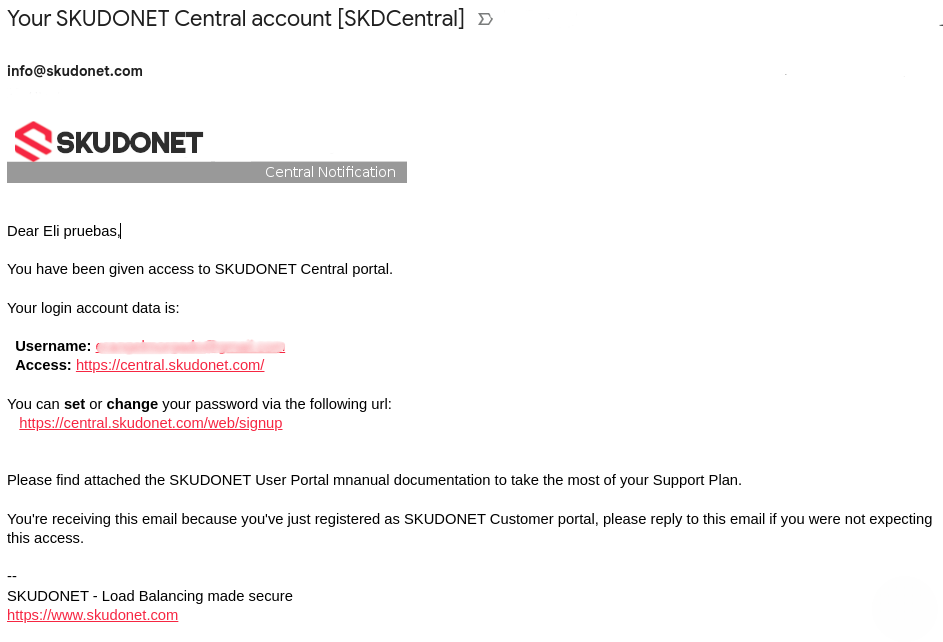
The email contains the following information:
- Username: The email address associated with your account.
- Portal Link: The main URL for accessing the platform:: https://central.skudonet.com
- Set Password Link: The URL for creating or resetting your password: https://central.skudonet.com/web/reset_password
Click the Set Password link to open the password setup page. Create a password for your account, then click “Sign-up” to continue.
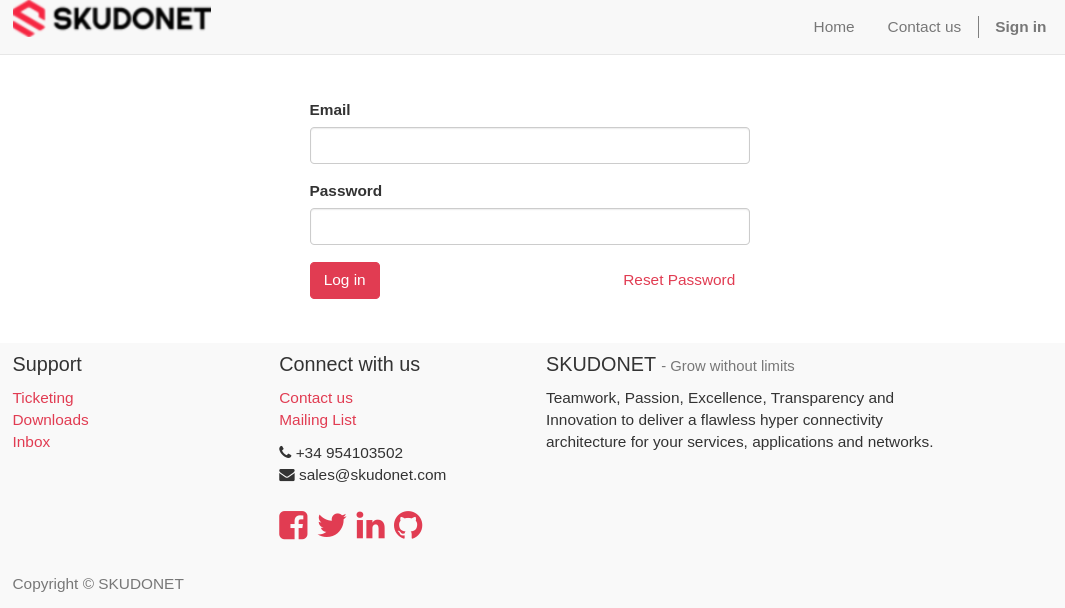
Once your account has been activated, you will be redirected to the main portal, as shown below.
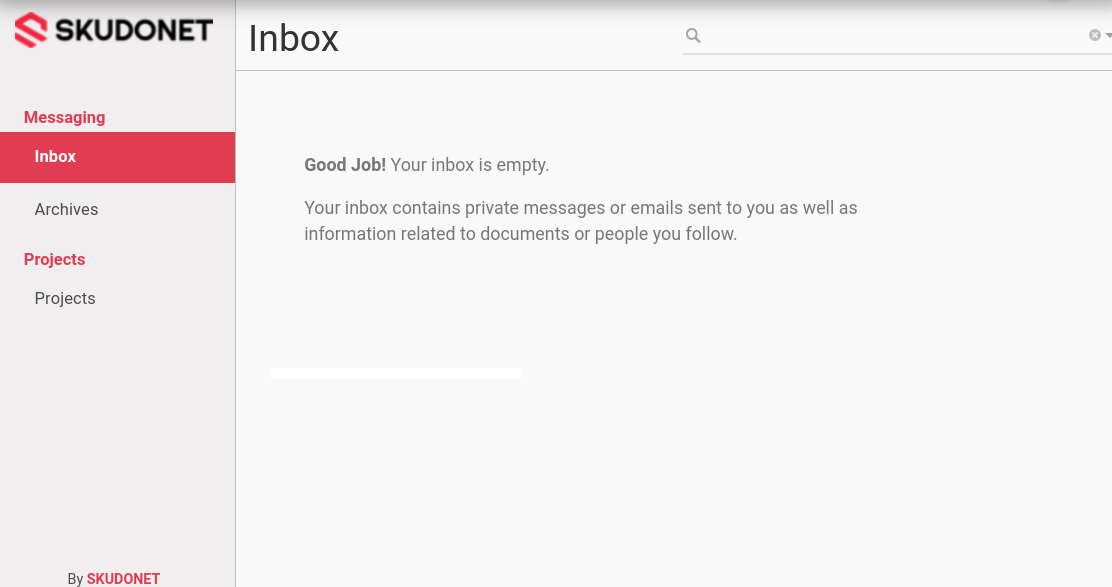
Welcome to SKUDONET Central platform! You are now logged in to the platform. The main navigation menu is located at the top of the page, while the sidebar provides access to the available options within each section.
2. Using the Portal
The Portal section allows you to communicate with the Support and Development Team.
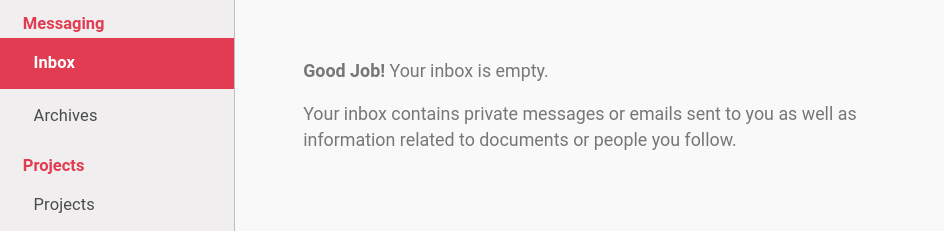
The sidebar contains the following options:
- Inbox: View new messages and updates from the Support Team at a glance.
- Archives: Access your communication history.
- Projects: View your Support Contracts. If you have been granted access to the platform, you should have access to at least one Project (or Support Contract).
2. 1 Managing Projects and Support Contracts
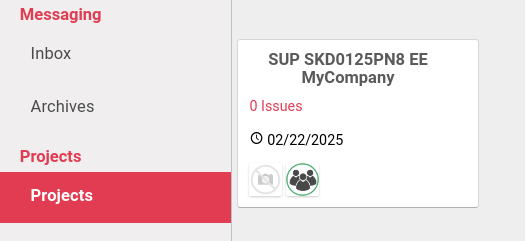
Each Project is identified by its Support Contract Reference and Company Name.
The Project overview displays the number of issues (or tickets) created, the Support Contract’s expiration date, and the Project team members authorized to open issues and communicate through the Support Contract. These typically include the Support Team and your account.
Click a Project’s title to view all its associated issues and their current statuses.
By default, issues are displayed in Kanban view.

Each column represents a different stage in the ticket lifecycle:
- Open: The issue has been created, but the Support Team has not yet started investigating it.
- In Progress: The Support Team is actively working on the issue and will provide an update as soon as possible.
- Wait for a Response: The Support Team requires additional information or action from you before the investigation can continue.
- Closed: The issue has been resolved.
Please do not change ticket statuses manually. Status updates are managed by the Support Team. Each status indicates the current progress of your ticket.
You can also switch to List view to see your issues in a list format.

2.2 Managing Support Tickets
Creating a Support Ticket
To create a new support ticket, click the red Create button.
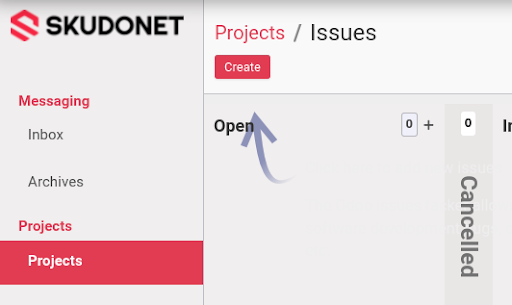
You will be directed to a form containing the following fields:
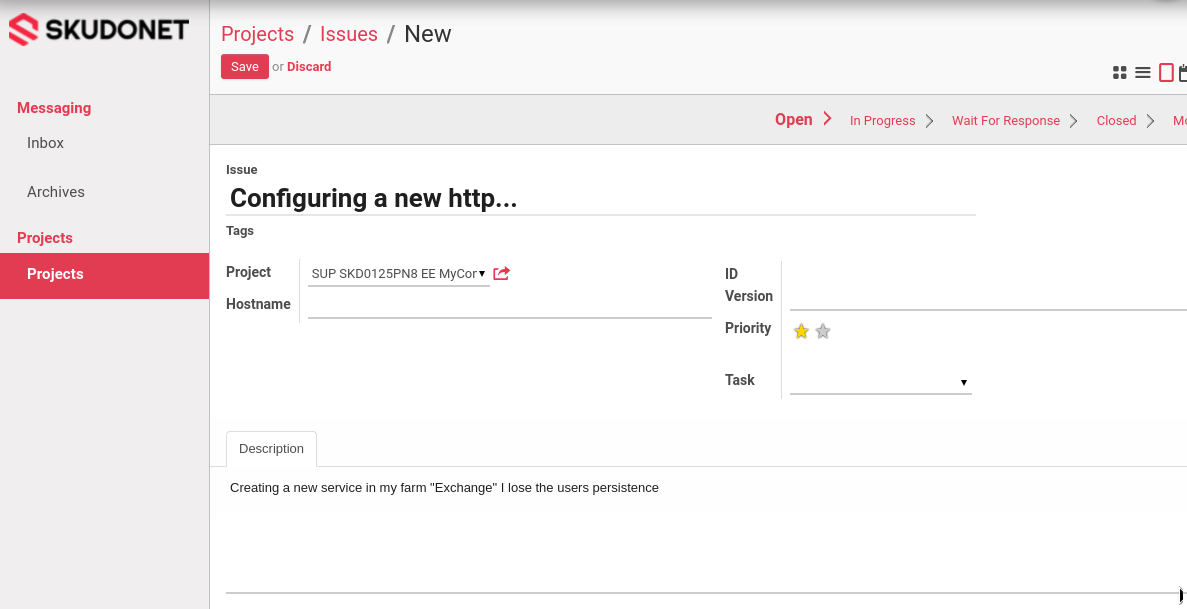
- Issue Status: New issues are automatically assigned the Open status.
- Issue Title: Enter a short, descriptive summary of the problem or request.
- Project: Select the Project associated with the issue.
- Issue ID: A unique identification number is automatically generated for the issue.
- Software Version: Specify the SKUDONET software version associated with the problem or request.
- Description: Provide a detailed explanation of the issue, including the steps required to reproduce the problem.
Once the issue has been submitted, the Support Team will review it and provide assistance as soon as possible.
Working with Support Tickets
Each ticket is assigned a unique identification number that allows you to track its history and related activities.
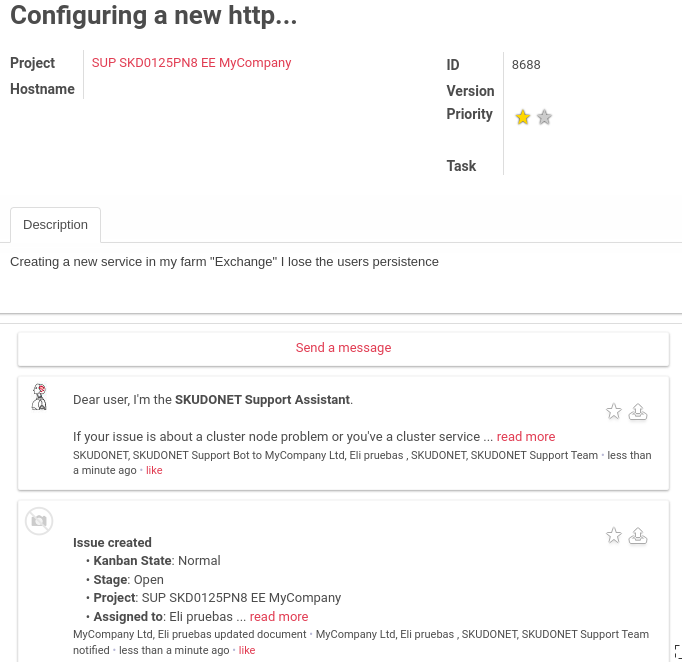
Within a ticket, you can:
- View the Issue ID assigned when the ticket was created.
- Review the complete communication history between the Support Team and everyone involved in the issue.
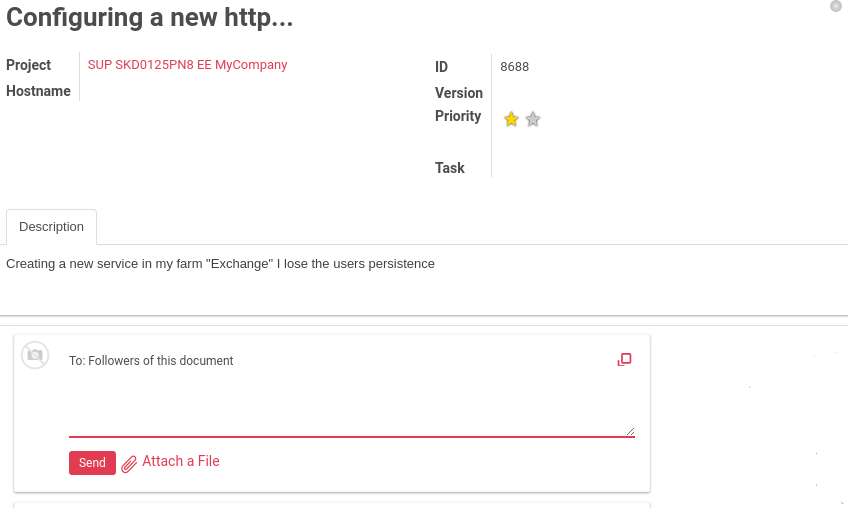
Sending a Message
The Send a message feature allows you to communicate with the Support Team and attach files when needed.
Enter your message, attach any relevant files, and click Send.
A copy of the message will be sent to all followers of the ticket and the associated Project.
Keeping Your SKUDONET Appliances Up to Date
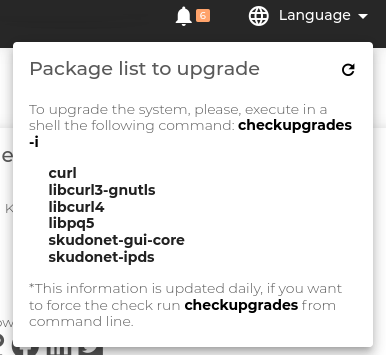
Keeping your SKUDONET appliances up to date is straightforward and helps protect them against known vulnerabilities.
For instructions on updating your system, please refer to this guide.
Before submitting a support request, please ensure that your appliances are running the appropriate updates. The Support Team will need to verify this to rule out known issues that have already been resolved.
2.3 Preparing a Support Request and Managing Your Case
A clear and complete support request helps the Support Team understand your situation, identify the affected configuration, and investigate the issue efficiently.
Please provide enough technical detail for an engineer who is unfamiliar with your infrastructure to understand the problem and, where possible, reproduce it.
You are not expected to identify the root cause before contacting Support. However, you should clearly describe the symptoms, affected components, and circumstances in which the problem occurs.
Open one ticket per issue
Create a separate ticket for each unrelated problem, configuration question, or feature request.
Keep all subsequent communications and test results related to the same issue within the original ticket.
Use a descriptive title that identifies the affected component and the symptom.
For example:
HTTPS farm “customer_portal” returns HTTP 503 after a backend restart
Generic titles such as “Application not working,” “Urgent problem,” or “Configuration help” do not provide enough information to identify the issue.
Information to include
Please provide the following information where applicable. If certain details are unknown or a test has not been performed, state this explicitly.
- Request and objective: Explain whether you are reporting a failure, requesting configuration assistance, or asking about a feature. Describe what you want to achieve and what assistance you need.
- Product and deployment: Specify the SKUDONET version, the hostname of the affected appliance, and whether the deployment is standalone or clustered. For cluster issues, identify both nodes and their roles at the time of the incident.
- Affected configuration: Provide the exact farm name, farm profile, virtual IP address, listening ports, and configured service name. Identify the affected backend IP addresses and ports. Use the names displayed in the SKUDONET configuration.
- Observed and expected behavior: Explain what is happening and what should happen instead. Include complete error messages, HTTP status codes, or connection errors.
- Timing and frequency: Provide the date, time, and time zone of the incident. Indicate whether the issue is continuous, intermittent, or triggered by a specific action.
- Previous behavior and changes: State whether the configuration worked previously and describe any relevant updates, migrations, network changes, certificate replacements, or application changes.
- Reproduction steps and tests: List the steps that trigger the issue, the commands or requests used, and their results. Where relevant and feasible, compare access through the farm with direct access to a backend.
- Supporting evidence: Attach a recent SupportSave file and any relevant logs, command output, or screenshots. Identify the timestamp and event that the Support Team should investigate.
For configuration assistance, describe the intended traffic flow, protocols, TLS requirements, backend addresses, configuration steps already attempted, and the specific point at which assistance is needed.
Describe Your Environment Using Technical Identifiers
The Support Team may not be familiar with your internal naming conventions, application architecture, or environment labels.
Terms such as “AUX environment,” “FRONT environment,” or “DEV” may provide useful business context, but they should not replace technical identifiers.
Explain what each label refers to and identify the corresponding appliances, farms, services, IP addresses, and ports.
For example:
“FRONT environment” refers to the production customer portal, published through farm “customer_portal”, service “web”, VIP 192.0.2.10:443, with backends 198.51.100.21:8443 and 198.51.100.22:8443.
For more complex deployments, include a simple network diagram showing the relevant traffic path and any intermediate firewalls, NAT devices, or proxies.
Collect and Provide Diagnostic Information
Keep the problem description and main findings in the ticket itself.
Attach supporting evidence using descriptive filenames and explain what each file demonstrates.
- Provide logs and command output as text files whenever possible. Include the command executed and identify the appliance on which it was run.
- Use screenshots to illustrate interface settings or visible errors. Screenshots should complement, rather than replace, searchable logs and text.
- Associate each test with its timestamp, client address, destination address, and result.
- Clearly distinguish observed behavior from suspected causes.
- Answer each question raised by the Support Team and report the outcome of each requested test.
A SupportSave file provides diagnostic context but does not replace a written description of the issue.
Generate a SupportSave
SupportSave collects configuration data, logs, and system status information from an appliance.
For technical incidents, generate a new SupportSave while the issue is occurring or as soon as possible afterward.
Where operationally feasible, collect it before restarting services, rebooting the appliance, or changing the affected configuration.
If recovery actions have already been performed, describe those actions and include their timestamps.
For cluster or failover incidents, provide a SupportSave from each node and identify its role at the time of the event.
From the Web Interface
- Select the checkbox acknowledging that the report contains confidential information.
- Click Generate Report and download the resulting file.
If report generation exceeds the web interface’s 60-second timeout, use the command line instead.
From the Command Line
Connect to the appliance via SSH or its local console using an account with the required administrative permissions. Run the following commands:
mkdir -p /opt/supportsaves
supportsave /opt/supportsaves
Wait for the command to complete.
The generated .tar.gz archive will be stored in /opt/supportsaves.
Download the archive to your workstation using an SCP or SFTP client. When attaching it to the ticket, identify the source appliance and the time the report was collected.
If SupportSave generation fails, include the command output or interface error in your support request. Explain the failure rather than omitting the report without explanation.
SupportSave archives contain confidential information. Transfer them only through the support portal or a secure transfer channel provided by the Support Team.
Do not include passwords, authentication tokens, or private keys in the ticket description.
Attachments and files larger than 100 MB
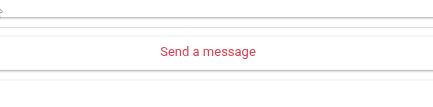
Use Send a message within the relevant ticket to attach diagnostic files.
To format your message, click the icon in the upper-right corner of the message window. Formatting can help make technical details easier to read and understand.
For SupportSave archives or other files larger than 100 MB, request SFTP upload instructions through the ticket.
The Support Team will provide the connection details and destination directory.
After uploading the files, update the ticket with:
- The source appliance and the time the files were collected.
- A brief description of each file’s contents.
Uploading a file does not replace updating the ticket. The Support Team needs your message to associate the uploaded evidence with the correct investigation.
Requests Requiring Additional Information
If the initial request does not contain enough information to proceed, the Support Team will identify the missing details and move the ticket to Wait for a Response.
Please provide the requested information or explain any limitations preventing you from obtaining it.
If you need additional time to perform tests or collect diagnostic information, update the ticket with an expected completion date.
The Support Team may close a ticket if essential information remains unavailable after clarification has been requested and a reasonable opportunity to respond has been provided.
The closure message will explain what information is missing and why the investigation cannot continue.
For an ongoing service outage, submit the available information promptly and add diagnostic evidence as it becomes available. Clearly identify any information that is still being collected.
Customer Confirmation and Case Closure
The Support Team will normally ask you to confirm that the proposed solution or explanation addresses your request before closing the case.
Please share your test results and confirm whether any further assistance is required.
If a ticket is awaiting your information, test results, or confirmation, and no response is received within seven calendar days of the latest follow-up from Support, the engineer assigned to the case may close it due to lack of response.
A reminder will normally be sent before closure. If additional time is needed, a different follow-up date may be agreed upon within the ticket.
Administrative closure due to missing information or lack of response does not mean that the technical issue has been confirmed as resolved.
If you wish to resume the investigation later, you can open a new ticket for the same issue under an active support contract.
Reference the previous ticket ID and provide any outstanding information, current symptoms, and updated diagnostic files.
3. Instant Messaging
The Advanced Support Plan includes an Instant Messaging (IM) feature that allows users to communicate directly with the engineer assigned to their case, helping streamline communication and provide faster assistance in certain situations.
After logging in to the SKUDONET Central Portal, you will see a chat icon in the main navigation bar.
Click the icon to open a sidebar displaying the available Support Team contacts. Select an engineer to open a new instant messaging conversation.
Note: Please ensure that you have an open support ticket before contacting an engineer through Instant Messaging.
The agreed Service Level Agreement (SLA) applies to the support ticket, not to the Instant Messaging feature. However, both parties may agree to continue discussing the issue through Instant Messaging.
The Support Team will then add a summary of the conversation to the relevant ticket to maintain a complete record.
4. Getting Started with Your Support Plan
First, make sure you can access the SKUDONET Central Portal at https://central.skudonet.com/ and view your Support Projects. Also, confirm that the relevant members of your team have accounts with access to the portal.
If additional users need access, please contact our Sales or Support Team.
We recommend using a shared email address or dedicated mailing list rather than an individual’s email address. This helps ensure that important support notifications continue to reach your team if the person responsible for the Support Contract leaves the company.
Staying Up to Date
To get the most out of your Support Plan, we recommend staying informed about new features, software updates, changelogs, and company news.
The SKUDONET Central Portal is our official platform for managing support tickets and communicating with the Support Team.
