
Access to SKUDONET Web GUI
To access the SKUDONET web GUI
- Open a web browser.
- In the address bar, type the following URL and press Enter: https://<host_ip>:444
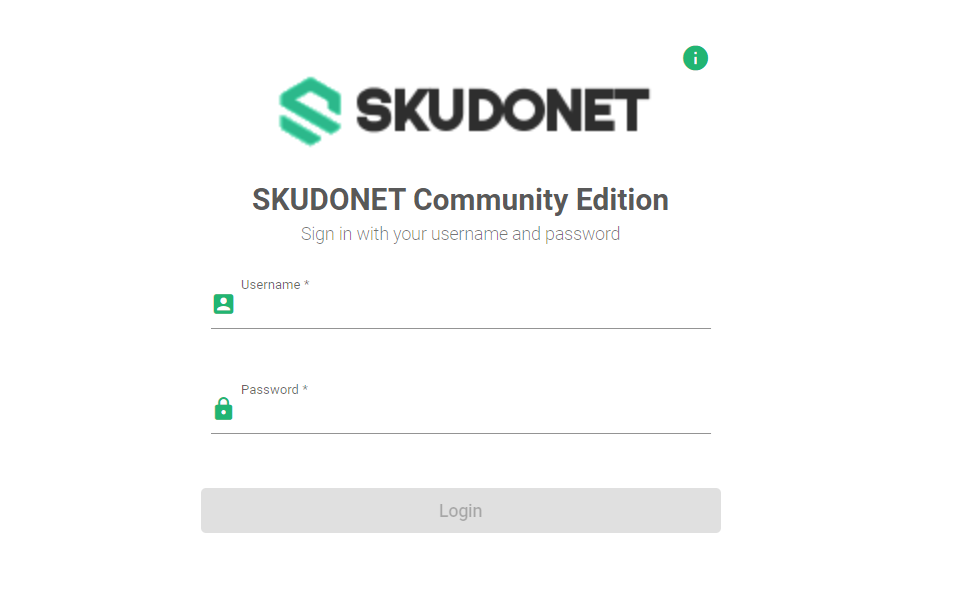
- If you see a Security warning from your browser, accept the certificate and proceed to the login panel.
- On the login page, enter the default username and password:
- Username: root
- Password: admin
- Click Login.
Replace <host_ip> with the IP address of your load balancer.
Important Notice!
If you installed the load balancer yourself, the password will be the one you set during the installation process.
Changing Default Password
To change the default password:
- Click the System menu.
- Click User settings.
- In the Change password field, enter the Current password
- Enter a New password you’d like to change with.
- In the Confirm new password field, re-enter the new password.
- Click the Apply button.
Be sure to choose a strong password and keep it safe. However, if you’re not satisfied with the current password, click the Revert Changes button.
Next Article: Dashboard
